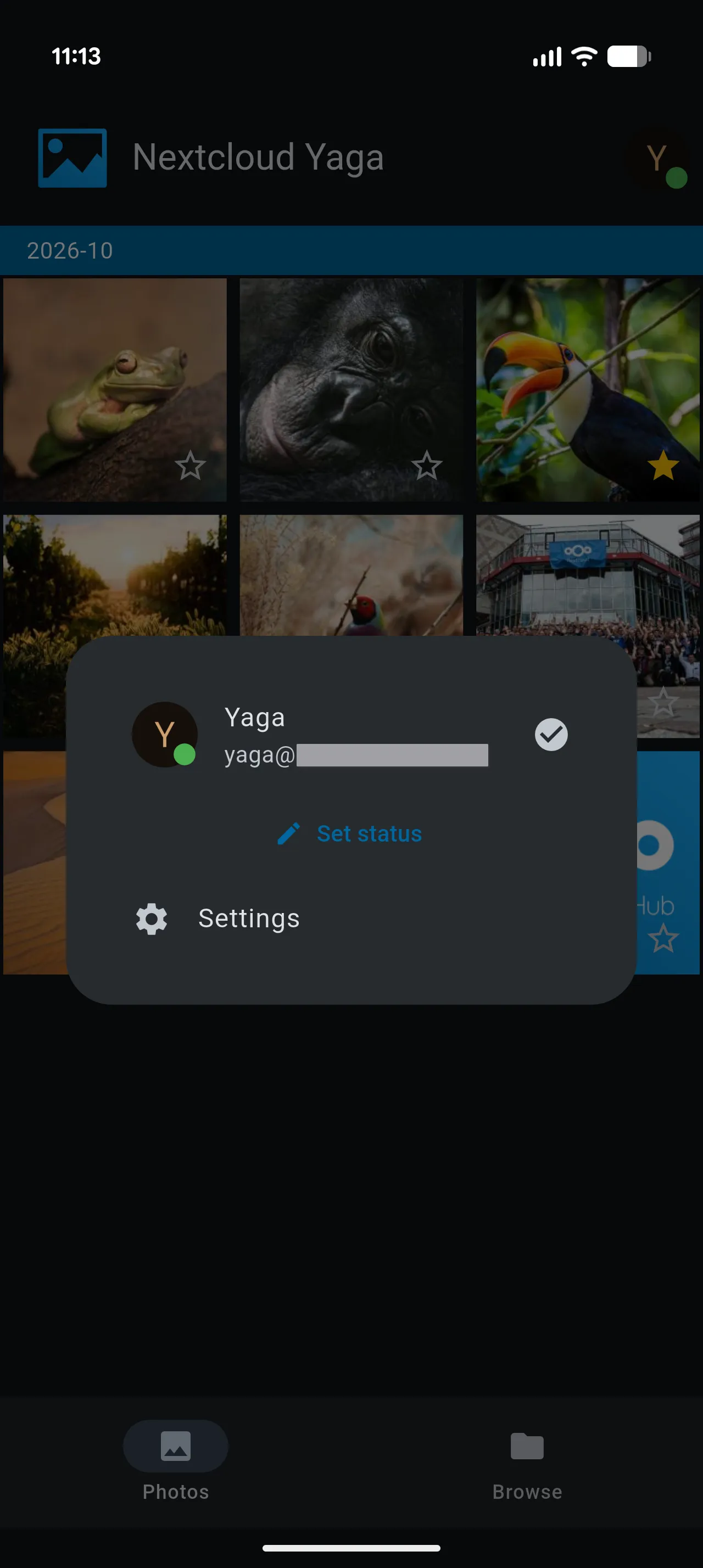
Main views
Yaga offers two main tabs: Photos and Browse. From Browse, you can also open Focus to see a photo timeline for a particular folder.
At a glance
| View | What it shows | When to use it |
|---|---|---|
| Photos | A timeline of images from your configured Media Folder, optionally including subfolders. | Scroll through your photo collection by month. |
| Browse | Folders and images in your Nextcloud account. | Navigate your folder structure and find images by location. |
| Focus | A photo timeline for a folder you choose, optionally including its subfolders. | Look through a particular trip, event, or folder without changing your Media Folder. |
Example: browse a trip
Suppose your Media Folder is Photos, with pictures stored in Photos/Trips/Vienna.
- Use Photos with subfolder scanning enabled to see those pictures alongside the rest of your collection.
- Use Browse to navigate directly to
Photos/Trips/Vienna. - Open Focus there to see a timeline of just that folder, including any subfolders if Focus View Scanning allows it.
Photos: your main timeline
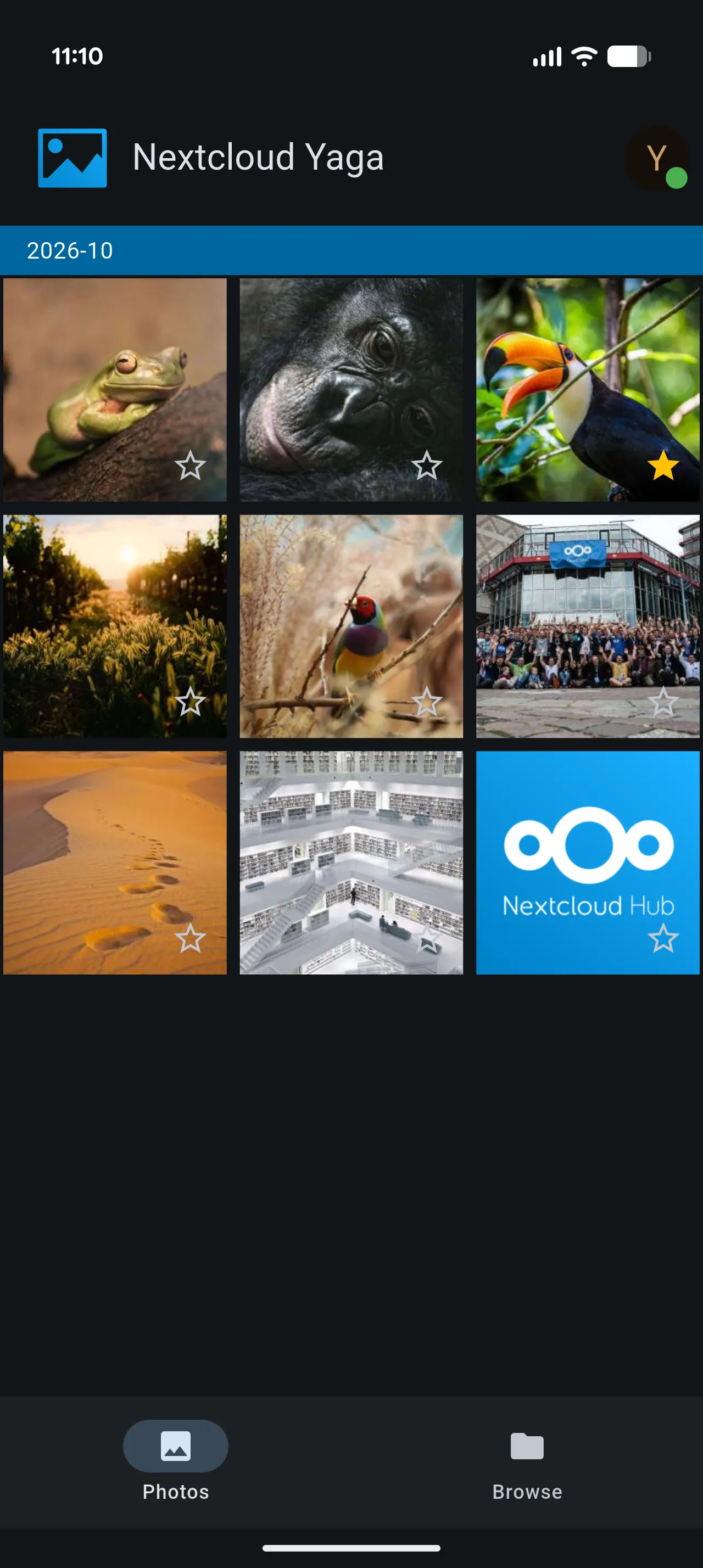
Photos opens a grid of images from the Media Folder configured for your account. Images are grouped by month, with the most recently modified files first.
The timeline uses each file’s modification date, so its position may differ from the date the photo was taken. Images without a date appear under Unknown date.
The Media Folder Scanning setting controls whether Photos includes images from subfolders. If an image appears in Browse but is missing from Photos, check that it is inside your Media Folder and that subfolder scanning is enabled when needed.
Browse: navigate your folders
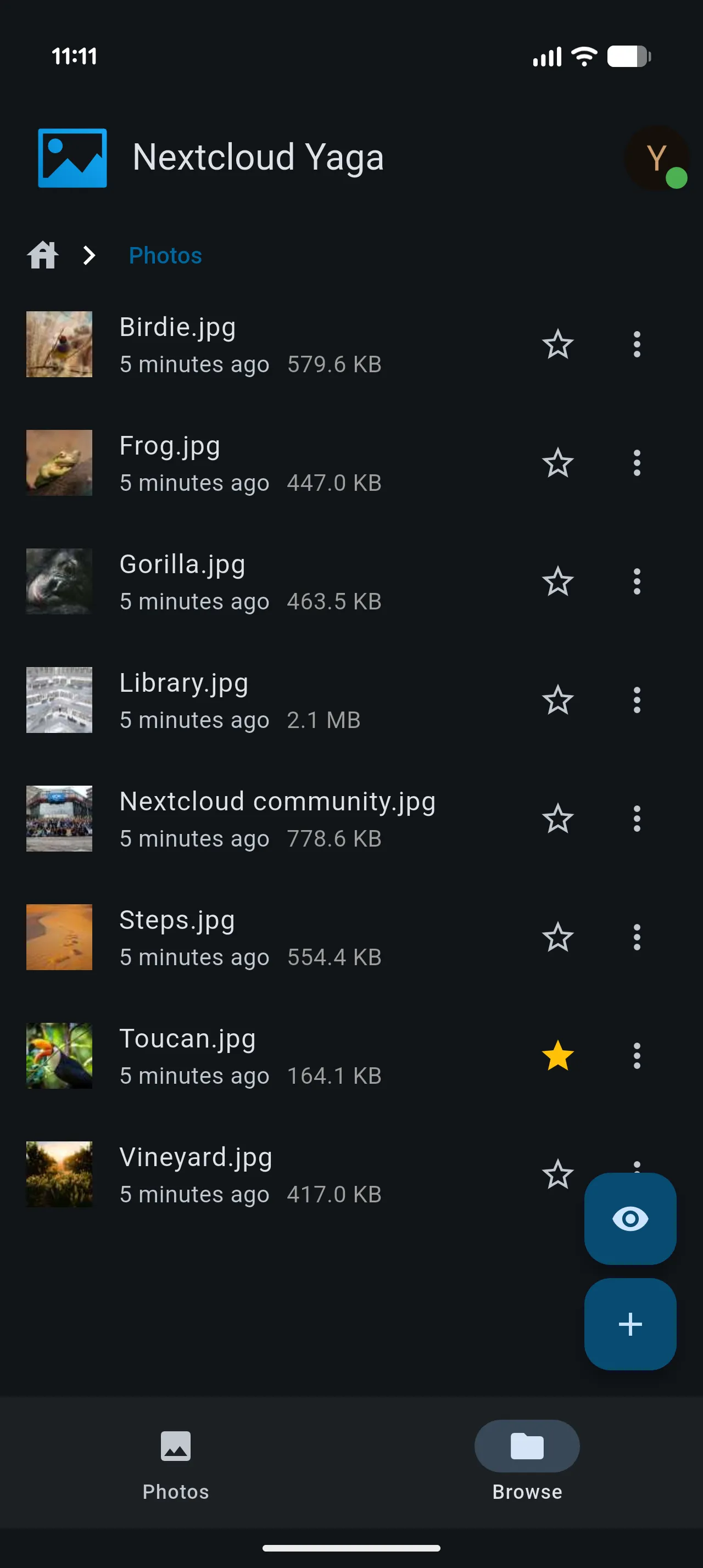
Browse lets you move through your Nextcloud folder structure. It shows folders and image files, so you can find photos by where they are stored. Open a folder to see its contents or tap an image to view it.
Browse is independent of your configured Media Folder. Use it to reach images elsewhere in your account or to choose a folder to open in Focus.
Focus: a timeline for one folder
Focus uses the same monthly photo layout as Photos, but starts from a folder you choose in Browse.
To open it, use either of these actions:
- Open a folder in Browse and tap the eye button to focus on the current folder.
- Use the Focus action on a folder.
The Focus View Scanning setting controls whether this view includes subfolders. It is separate from Media Folder Scanning, allowing your main timeline and a focused folder to use different scanning behavior.
Opening Focus does not change your Media Folder. Return to Browse when you want to choose another folder.
Image viewer

Account menu